Watch a scene edit in five steps
Set up once, then any edit you download plays on top of your own stream.
On a phone? Edits play in desktop Chrome only. You can browse and manage your account here, then install the extension on a computer.
- Install the extensionDownload the ZIP and load it in desktop Chrome.How to install
- Connect your accountApprove a one-time code so the extension knows who you are.Approve a device link
- Download a scene editPick a reviewed edit for a title you can stream.Browse the catalog
- Activate itOpen the title and press play. The edit turns on by itself, or choose Watch with edit in the toolbar menu.How activation works
- EnjoyPress play. The edit runs locally; the original returns when you press Stop edit.What works today
1. Install the extension
Version 0.65.4. It only runs on the streaming sites you allow.
Sign in with a verified account to download the extension. Accounts are free.
Verified means you opened the confirmation link we emailed when you created your account.
For creators: the Creator edition
For now there is one download, and it already includes Creator tools: mark scenes on the episode, preview your clips in place, and save edit packs. Once the Viewer edition is in the Chrome Web Store, approved creators download the Creator edition here as a separate ZIP. Compare the editions.
2. Connect it to your account
- Click the Seamless Scene icon in the toolbar and choose Link your account (the welcome page that opens after installing has the same step), then press Start linking. The extension shows a code such as
651C-A6DD-A8E5. - Follow its Open the approval page link (or go to Approve a device link while signed in). The code is filled in for you; check it matches, tick the confirmation and press Approve device link.
- The extension notices the approval within a few seconds and shows Linked as …. Links last 30 days; you can renew from the same page or revoke one from Linked extensions.
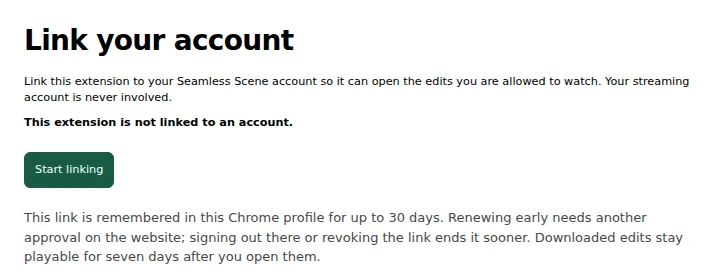
Only approve a code you started yourself. Linking never involves your streaming account or password.
3. Download a scene edit
Pick an edit in the catalog for a title you can stream, and check the version it needs. You don’t download anything by hand: the extension fetches the edit when you choose to watch it and keeps it on this computer only. Your kept edits, their space and updates are in the extension’s Library (toolbar menu → Library).
4. Activate the scene edit
- On the edit’s page, press Watch this edit. The title opens in a new tab while the edit downloads in the background; the button shows its progress. The first time, click the toolbar icon on the title and press Allow Prime Video.
- Press play. The edit turns on by itself: the toolbar icon shows ON and the Seamless Scene badge on the video turns green. Already on the title? Click the toolbar icon and press Watch with edit (or Watch next to the edit you want, if there are several). Click the badge on the video to open the player menu: Previous scene, Next scene and the scene list jump to a few seconds before each scene.
- Press Stop edit in the toolbar menu or the player menu at any time and the original picture and sound return. To switch to another downloaded edit, choose Change edit…. Next time you play the same title, your edit turns on by itself.
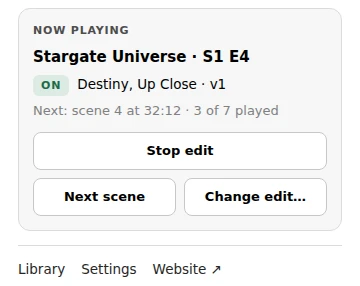
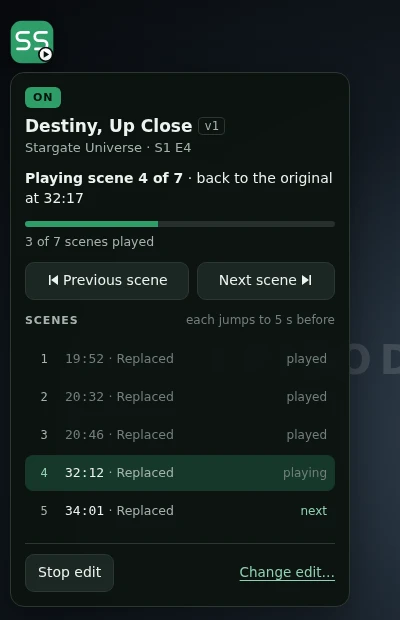
5. Enjoy
Everything runs in your browser. Nothing is uploaded and your stream isn’t recorded. Something off? Report a timing problem.
What works today
Streaming services
- Prime Video: supportedU.S. standard (ad-free) plans.
- Netflix: coming laterIn development. No edits published yet.
- YouTube: not supportedNot yet.
- Disney+: not supportedNot yet.
- Hulu: not supportedNot yet.
- HBO Max: not supportedNot yet.
- Paramount+: not supportedNot yet.
- Peacock: not supportedNot yet.
- Apple TV: not supportedNot yet.
- Tubi: not supportedNot yet.
Devices and browsers
- Desktop Chrome: supportedVersion 133 or newer on Windows, macOS, Linux or ChromeOS.
- Edge, Brave, Firefox, Safari: not supportedNot yet.
- Phones and tablets: not supportedBrowse and manage your account; playback needs desktop.
- TVs and consoles: not supportedNot planned.
Each edit works with one exact version of a title. Check the edit page before you download.